Learning Center › Smart Home Hubs
How to Simply Create Alexa Routines
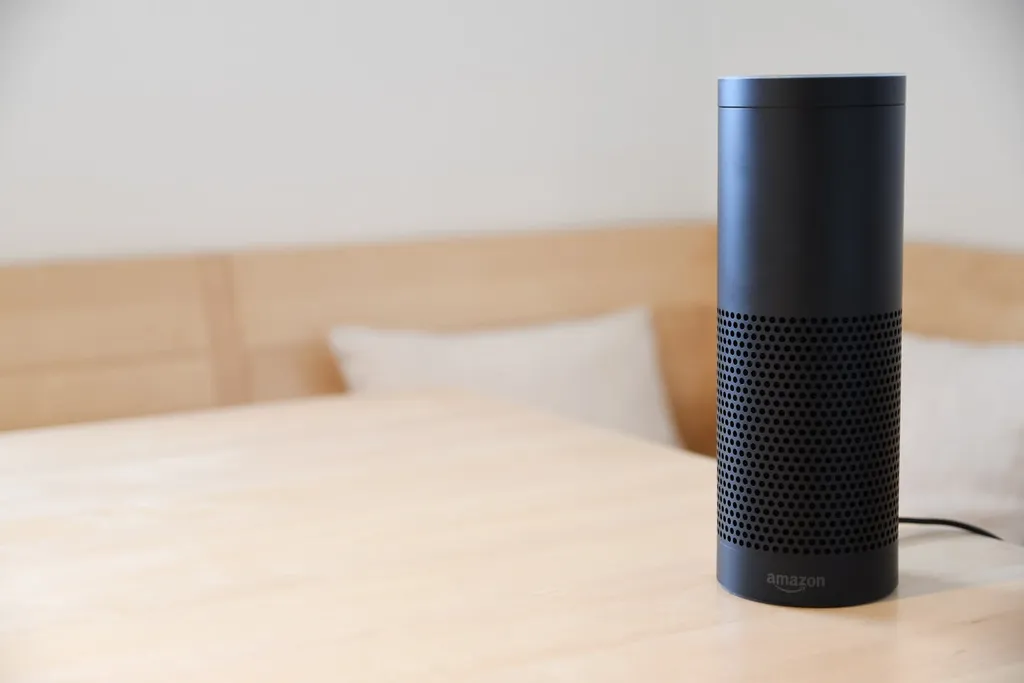
You are probably familiar with Alexa, the voice of Amazon’s smart speakers.
Most people know Alexa as the speaker you can talk to. What you may not already know, however, is that Alexa can do a lot of things for you without you having to say a single thing. Alexa has a routine feature that allows you to set up a series of actions that can help with your schedule and save you time.
Many time management experts have recommended using routines to keep your life organized, and now you can use Alexa for extra help setting up those routines. Alexa routines can be simple or complex. You can set your routine to play music, adjust the temperature on a smart home thermostat, send a message to your spouse, and many other useful actions.
Whether you want your routines to begin automatically, so you don’t even have to think about it, or you would like your routine to begin with a voice command, we will guide you through the process of setting up your Alexa routines and customizing them to meet your needs.
If this proves too difficult then consider reaching out to HelpCloud Technician by-the-hour and we’ll walk you through the setup.
How to Set Up Routines With Alexa
First, you will need the Alexa app on your phone or tablet. If you are just getting started with Alexa and you do not already have the app, visit Amazon or Apple’s App Store or Google Play. The app is free to download.
Once you have the Alexa app,
- Open the app and look for the menu icon in the top left corner of the screen. The icon should appear as three bars.
- Choose “Routines” from the list of menu items.
- Now you should see a plus (+) icon in the top right corner of the screen.
- Tap the + icon.
- After tapping the + icon, you will be taken to the “New Routine” page.
- Select “When this happens.”
- You will now be on a page that allows you to choose how your routine will be activated.
Still, you have a few options …
Your routine can be activated through voice command, location, the Echo button, or on a schedule. Choose one of the following options from the “When this Happens” Page and we will guide you through how to set up that type of routine.
Voice
The Voice option triggers your routine with a specified voice command.
- After choosing “Voice” from the “When this Happens” page, you will be asked to type in your desired trigger phrase. For example, your trigger phrase could be “Alexa, good morning!” or “Alexa, I’m Home.”
- Choose a phrase and tap “Next” from the upper right-hand corner of your screen.
- Now choose “Add action.” This will take you to a list of possible actions you can add to your routine.
You can have Alexa share the news, the weather report, or even a daily horoscope. Scroll through each of the options to see what you can do. - Once you have chosen an action, tap “Next.”
If you would like to add more actions to your routine,
- Repeat the previous step.
- You can add as many actions as you would like.
- Be sure to tap “Save” when you are done adding actions.
Now your routine should be ready for use!
Location
The Location option allows your routine to be activated whenever you are arriving or leaving specific locations.
- After choosing “Location” from the “When This Happens” page,”
- tap either “Arrives” or “Leaves.”
This will trigger your routine whenever the device you are currently using either enters or exits your chosen location. - Now, enter the address you want to be your trigger location.
You can enter your home or work address or even the grocery store, - and then tap “Save” from the upper right-hand corner.
Now, you will add an action to your routine.
This step is just like the process for setting up a routine with voice command. You choose from the list of actions and add as many as you would like. A popular action to add to your location-triggered routine is sending an announcement to all your devices whenever you leave work. This way you can inform whoever is at home that you will arrive soon.
Another popular action is adjusting your smart home thermostat whenever you leave your house. This can allow you to save money on utilities and you can set up a routine to adjust it back to a comfortable temperature when you are returning home at the end of the day. You can have Alexa take care of all of this without even having to tell her.
When you are finished adding actions to your routine, you can decide if this is a routine you want to run every day of the week or only at certain times. If you want your thermostat adjusted only during weekdays, you can disable this routine on weekends.
- Just above the “Add action” option, you should see the default setting, which is “Anytime.”
- Tap “Change” to adjust the default setting to begin on your desired days.
- Be sure to hit “Save” on this routine and you are set!
Schedule
The schedule option allows you to set up a routine that starts at a specified time.
- After choosing “Schedule” from the “When This Happens” Page,
- you will see a spot to choose which time you want this routine to start. Choose your desired start time.
- Then, you will be able to choose if this is a daily routine or if there are specific days of the week you would like to this routine to run.
- Choose the days you would like the routine to run and tap “Next.”
- Now, you can add as many actions as you’d like, just as you would with Voice Command Routines or Location-Triggered Routines — be sure to save your routine at the end!
Echo Button
The “Echo Button” feature begins your routine when you tap a button on your smart speaker. If you choose this option, your app will ask you to tap the button on your Amazon Echo that will be the trigger for your routine.
Routines using this activation method will follow the same “add action” set-up format as the previous routine activation options. When you want your routine to begin, you will have to be in close range to your Echo Speaker.
Alarm
The alarm feature begins your routine when an alarm goes off.
The setup and function of this routine option is the same as the other “When This Happens” options. This feature can be useful for automatically activating morning routines as soon as you wake up.
Cool Features to Add to Your Routines
Add an End Time:
If your routine includes playing music, you can set up a time for that music to stop by using the “Timer” function.
Wait Action:
You can set up wait times in between actions in your routine.
If you want your thermostat adjusted as soon as you leave work, but you don’t want music to begin playing until you arrive home 30 minutes late, add a wait action in between the smart home adjustment action and the play music action.
Do Not Disturb:
Alexa can enable Do not Disturb mode as part of your routine. Alexa can also disable Do Not Disturb mode. These features are really useful to add to your nighttime and morning routines. Additionally, if you want to have a peaceful family dinner, you can set up a routine to begin at dinner-time each night where your phone is put on Do not Disturb mode, and then perhaps you would like to add some peaceful music to create a nice atmosphere.
All of this can be done with an Alexa routine.
Email Summary:
This feature is perfect for people who struggle to find time to stay caught up with emails.
You can have Alexa deliver an email summary to you as part of your routine. You can catch up on those work emails while eating breakfast or brushing your teeth.
Traffic Report:
Did you know on average Americans spend 19 full workdays a year stuck in traffic?
Before you leave for your morning or evening commute, it is useful to have Alexa check the traffic report as part of your routine. You might just avoid a big crash on the freeway and save yourself a ton of time!
Get More Organized With Alexa Routines
If you haven’t tried out an Alexa Routine already, give it a shot and see how much time you can save with this useful tool. There are nearly endless possibilities of what these routines can add to your life. Your daily schedule is about to get so much more organized!
For video help setting up an Alexa routine, visit the HelpCloud Youtube Channel, and as always, if you are having any kind of difficulty creating Alexa routines of your own, please consider reaching out to HelpCloud Technicians for remote support.